Posts Tagged ‘video’


By: rbouchez | Posted: Tuesday, March 22nd, 2011
*We’re all about helping you improve your web videos & we’d like to highlight more great resources like this one – if you have suggestions, please add them to the comments or hit us up on Twitter!

the-armory-screen-grabWhether you’re a home builder or not, I highly recommend Three Proven YouTube Strategies for Homebuilders on The Armory Blog by Brendan Miller. He asks the question “Can YouTube be used as a marketing and lead generation tool instead of just a sales tool for builders?” and you should be asking the same for your business, blog, brand, etc.

On his list of suggestions (see article for details):

1) Create a contest

2) Do Something Outrageous With Your Product

3) Be A Thought Leader

Fortunately his advice doesn’t just apply to Youtube and it doesn’t just apply to home builders either. No matter where you’re posting videos whether you’re a real estate agent, restaurant owner or even if you’ve started a new business using a Bedazzler, you should do more than take notes, take action!

As a side note, it’s worth mentioning that while he searched for “Home Builder” on Youtube to see what surfaced, you should put serious thought into how you’re customers and potential customers would search for your product. The best way to figure that out is to ask them directly, so begin connecting with them on Twitter, Facebook & Linkedin!

Thanks for stopping by!

@richardbouchez

Social Media Specialist for EZWebplayer.com

*Adapted from original post at www.InovediaMarketing.com


By: rbouchez | Posted: Tuesday, January 4th, 2011

Whether your website is marketing the latest gadget to hit the industry or just expressing opinions in a video blog series, adding video to your website is the best way to get your viewers to stay longer on your site.  When adding video to your website you’ll want to ensure the video file is encoded properly.  A couple things to keep in mind when exporting your HD video to a web video player are to keep the video ratio consistent and achieve an acceptable balance between bitrate for both video and audio data streams and the overall size of the video file.  If the frame width and height values are not keep consistent the video might result in a distorted picture, black bars on the top or bottom and could even affect the frames per second of the video causing issues during playback.  The video hosting site will have to stream the compressed video file and then decompress the file during playback, so a large file might be difficult for some users who have slower connections and systems.  I will be using Adobe’s CS5 to demonstrate some example render setting to use when exporting your HD video to a streaming file for the web.

Video Frame Size

Video Bitrate

Audio Bitrate

1minute File Size

1280×720

VBR 2 pass -

Target 3.5M, Max 5MB

160kbps

26.1MB

1280×720

VBR 2 pass -Target Target 2.5M, Max 4MB

112kbps

18.6MB

1024×576

CBR -

1MB

96kbps

11.3MB

768×432

VBR 1 pass

Target 3.5M, Max 5MB

80kbps

7.69MB


HD Render Settings Example 1


HD Render Settings Example 2


HD Render Settings Example 3


HD Render Settings Example 4


By Mike Pudlo: Chicago Area Video producer and Creative Writer


By: rbouchez | Posted: Tuesday, November 9th, 2010

When adding some nice bells and whistles to your web videos by way of fun but purposeful motion EFX, the time line can get bogged down and you might find your computer crashing a lot.

system crashFollowing some professional secrets will reduce your crashing and maximize your processor’s ability to render the video in a shorter time.

A)  Close all unnecessary software programs. These are programs not being used to edit the project at hand.
B)  Pre render high activity timeline elements on their own time line, then bring them into the main timeline as a single element.
C)  During rendering of the main timeline, you can choose to only render a smaller segment at a time while you go to the kitchen or break room for filling up your coffee cup, instead of relying only on the whole timeline being rendered while you go watch a movie or clean out the garage.

My process for the final rendering session goes like this:
-I empty my machine’s trash
-Reboot, keeping my MS Office closed so that Outlook doesn’t hog resources during rendering.
-I then open my editing program and execute final renders.

If you do all of this and still have problems, start by deleting all of your PREVIEWS, then reboot, etc. Obviously, you’ll have to re render your pre rendered segments again unless you chose to save those specific renders. But, your machine will be running leaner when you do.

Incidentally, most professional editing suites are devoid of all other software other than those environments necessary for post production tasks and editing . There are even many editing suites that have a separate machine for high level tasks like operating After Effects. The only other program they might have on all of their machines is a file sharing program to move files around amongst their various tasking machines.

So, you can enjoy near the same CPU leanness by simply shutting down unnecessary programs.

If you’re still having problems, buy a new computer with lots of processing power. The more, the better. And, keep it off of the Internet; another pro trick. Free of charge. Your welcome.

Bookmark and  Share

By Stu Marks: Chicago Area Media Designer & video consultant.

Bookmark and  Share

Flickr Photos credits:

ATC Don’t Panic by Sarabbit


By: rbouchez | Posted: Tuesday, August 31st, 2010

It’s no secret anyone can create & upload web video to their site, Youtube or other sites easily, but that doesn’t mean it’s a good idea. Here are 3 key points to consider to help keep your videos fresh, interesting and effective followed by a great discussion by some of the pros on creating videos for business.

  1. Don’t ONLY create videos to increase your chances of being found. Have specific business objectives (a strategy) in addition to SEO such as:
    • Improve your customer service by posting how to videos.
    • Added value to current clients with “tips” videos.
    • Go viral – worth mentioning because, while getting millions of views on Youtube is possible, it’s really a practical goal.
  2. Stay on brand. “Premiere” products will want to pay special attention to quality and serious brand will have to avoid silly or tacky subjects.
  3. How many can you make? Creating videos takes time! Try to create a system where you shoot a couple at once so you can post them over time or get into the habit of shooting quick videos throughout your week. This will help you keep your content fresh and new!

Check out this podcast! Starting at 45min 15seconds begins a great discussion of how different businesses can use video. This is also a great example of the discussion every business owner should be having before they start producing videos for their business!

this WEEK in MEDIA 133 : Tales from Twitter
Tuesday, April 28, 2009 1:46 AM
What if your Iphone drove your car, what to do if people hate you online, and when all else fails put pets in your video!

TWIM (This Week In Media) is a podcast that focuses on the present and future of web video from tv shows, to movies and even how businesses are using web video for self promotion.

Thanks for stopping by!

Original post from www.InovediaMarketing.com

By: admin | Posted: Wednesday, August 4th, 2010

You’ve already been told by several trusted individuals that you need a video on your website, or you have several videos that belong on the web, and you need a quick and efficient way to start posting them.

Now what?

FORMAT FOR WEB VIEWING

Your video needs to be converted to a web friendly format that is small in size but rich in both visual and audio delivery. There are literally dozens of video formats in the world but only a handful that are web friendly. I suggest the following formats; MP4, FLV, FV4, h.264 and Quicktime.

Since your video may not have started out as one of these, you need a converter. Free or inexpensive converters are available on the web. Conducting a search for “VIDEO CONVERTER” should result in many hits from which to choose. Download, install and start converting.

CHOOSING YOUR PLAYER

This is a little like shopping for your Converter, only more important. The Player you choose will be presenting your video content either as an integral part of your web site or as a portal for all web videos and your web videos are only being temporarily featured therein. The other content is an unknown and not under your control. Not good.

Unless it is your intention to create a global web video portal, it’s better to pick and choose the content to which your viewers will be exposed. EZWebPlayer is just such a player. Feel free to conduct a search like you did for your converter, but take it from one who has been there and done that, EZWebPlayer has the features you need and then some.

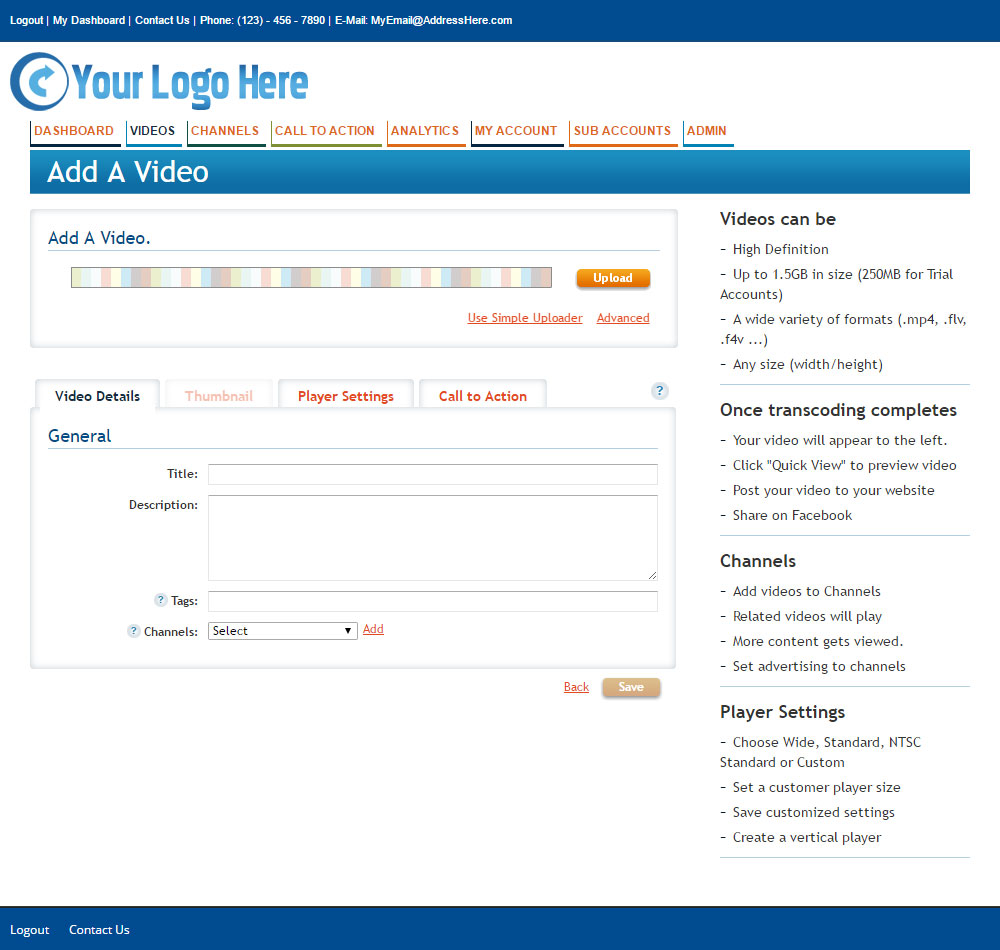
Go to www.EZWebPlayer.com, click on the FREE TRIAL button and get started. The install procedure to your site is a revolutionarily simple process. For each page upon which you’ll be playing videos (yes, it supports multiple sites for no extra charge) simply fill out the data fields with your connection info, and start uploading your videos. It’s so simple, you’ll actually enjoy this part of your web video configuring.

Viewers can either be presented with that one important video, or choose from a drop down menu. Videos can start playing automatically or wait for the play button click. Title, description and even views count are completely customizable.

And what about advertising? Woo hoo! You’ve hit the jackpot. For no extra charge, you have at your fingertips the ability to insert images and videos over or in between your video features; WITH LINKS. Yeah, really.

For more info and to also see the new Word Press Plugins, go to www.EZWebPlayer.com. There are samples and other videos to see.

There is only one, uncomplicated video player for your web site that is both simple to install and simple to operate and doesn’t require one to learn a new coding language. And that would be EZWebPlayer. A Player for beginners and beyond.

Bookmark and  Share

By Stu Marks: Chicago Area Media Designer & video consultant.

Follow the instructions for installing the one time code set on your web page. 

Upload your first video. 

We hope you found this tutorial helpful! Thanks for visiting!  


By: clintpollock | Posted: Wednesday, February 17th, 2010

Bookmark and  Share

One of the most important parts of putting video on the web is to ensure it has been rendered properly. We would like to lend some best practices that we have learned during our tenure of creating web video. File size, quality, bit rate and more, all come into play. There is no all inclusive guide out there that has all of the answers. Testing is the primary way you can get your render settings just right.

Video on website is a balance between quality and file size. Yes, the majority of people have good connections. However, something like DSL can stutter even a well rendered file.

In this document we will outline video rendering best practices that will help you avoid issues with file buffering and more.

Video Editing Software

There are many desktop video editing suites and packages out there. Most are capable of creating video that will work with Flash (Our players are created with Flash). We use Adobe Premiere to edit video. Information and screen shots provided below will be based off of Adobe Premiere CS4 but, the values mentioned are industry standard terms that usually apply cross platform.

Working with Web Video – Exporting from Your Video Program.

When working with web videos there are several properties that need to be addressed for a streaming file to play correctly. I recommend using FLV or H.264 (MP4) formats to create your streaming web videos. MOV does work but we have seen issues with those files. FLV and MP4 videos are smaller in file size and offer the same if not better quality then the MOV files.

The ‘pixel aspect ratio’ of your video is important to maintain when encoding your timeline.
1920×1080 (High Definition)
720×480 (NTSC, 4:3 and 16:9)

- Our flash player plays videos best at 720×480 for NTSC and 800×450 for HD

- You can render your video any size you want as long as you keep it the same ratio.

The bitrate setting can vary depending on the overall production requirements.

- Our bitrate settings range from 500 – 1229kbps.

The audio settings are stereo, 32 – 128kbps. For longer videos, reducing this setting will help reduce file size. Changing this value usually can be done without noticeable quality loss unless one is working with extremely high fidelity gear, which would be seriously hampered by most Internet connections any way.

When working on an NTSC timeline, I’ve found that Premiere creates black bars on the right/left sides of the outputted FLV to accommodate for ratio differences. To eliminate this, render out a full quality .mpeg2 and use the Adobe flash encoder or embed the new mpeg into a timeline and then proceed to export the FLV/MP4.

High Definition

We find that MP4 files typically work best for High Definition. This term is thrown around in the web world, but the truth is the only way you can really get high definition is by having a 24in monitor. The files you play through the SinglePlayer or MultiPlayer that are labeled High Definition will be much better quality than your standard render, but there is no possible way to render a 1920X1080 file and send it to users unless you are using the Google or Yahoo vehicles . File size becomes a real problem here – a 5 minute video can become hundreds of MB’s. If you plan to offer a High Definition render be sure you offer an alternate option for users who have trouble. Ensure your web host is capable of sending these files to the viewer fast enough. Don’t forget to watch your bandwidth and storage usage with your web host – these files will eat it up. In our opinion we are not yet ready for the regular person/business to display HD web video. 50MBps home lines are coming so it won’t be long. I expect that in the next 1 or 2 years HD video will become more prevalent.

The other thing to keep in mind – FLV/MP4, etc are all rendered and compressed. The viewers computer must decode the video. If people have a slow computer, they are low on RAM, and have a lot of programs running, it can cause the computer to hiccup. This is no fault of the flash player, but the fact that the person’s computer is unable to handle that high quality of video.

Video Size & Long Videos

From the above example you can see that video file size starts to add up quickly. For this reason you want to have the right kind of render to fit your web hosting provider and your visitor’s Internet connections.

30-50Mb for a 5 minute file is typically ideal. It is also a good idea to split up videos. In other words, running a 30 minute video may not be the best idea if you are using HTTP download (which most use). The reason why – each time the user clicks play the entire file starts downloading. If they only watch 5 minutes there would have been a lot of unnecessary file transfer.

You can easily use the SinglePlayer or the MultiPlayer to split up files into “chapters” and allow the viewer an easy way to see the parts of the video they desire. 5-10 minutes is your standard Internet Video Length.

Making videos short can ensure your viewers run into less viewing problems.

Buffering

In order for the user to watch the video, it must download to their computer. There has to be a little bit of a buffer for the video to play smoothly. If your video can’t buffer as fast as you can watch it, your video will stop until the buffer catches up, only to stop again. You can see the SinglePlayer buffer below. Since this is a long video I feel confident it will buffer fine for most. I have tested these videos from DSL connections in rural locations and it has a hard time keeping up. There is still a LOT of people living in remote areas with slow DSL or Satellite connections. You don’t want to forget about them.

Clear your cache

Once the video fully downloads to your computer, it may store that and not try to download your new version next time. Be sure to empty your Browser cache each time you upload a new video. This forces your computer to go through the download process again.


Hosting your Video Files

It is important to use a fast web hosting provider. You will need at least 100KB bandwidth to send people video files. The easiest way to find out how fast your host is – upload a file that is larger than 10 MB to your host. Then download it through your FTP or HTTP and see how fast it is. This shows my web host is sending me 275KB/Second which is fast enough to handle several downloads at a time.


I have my web content on one host, and my video content on another. I use http://www.streamhoster.com/ but there are many out there.

Flash Streaming

Do you have large and lengthy video files? Your next step will be using a Flash Media Server host. Flash Media Server will stream web video in real time. This is different than HTTP download – instead of sending the user the entire file, a Flash Media Server streams it to the user as they view it. In addition, you can have multiple render settings within one file. It is possible to have an HD file, a standard render and, a small render all in one file. The Flash Media Server determines which stream it can send them and handles it automatically. This is of course more complicated to setup, render, and use but may be necessarily if you have large files or lengthy content. Click here to get an easy to use RTMP Video Player.

Adobe CS4 Example Render Settings:

H.264, Wide Screen.

H.264 4:3


Bookmark and  Share

 We hope you found this tutorial helpful! Thanks for visiting!

Clint Pollock
President | EZWebPlayer.com
The Non-Tech solution to putting videos online
www.EZWebPlayer.com


Connect with Clint on Linkedin.com Connect with me !

More Web Video articles you might like…